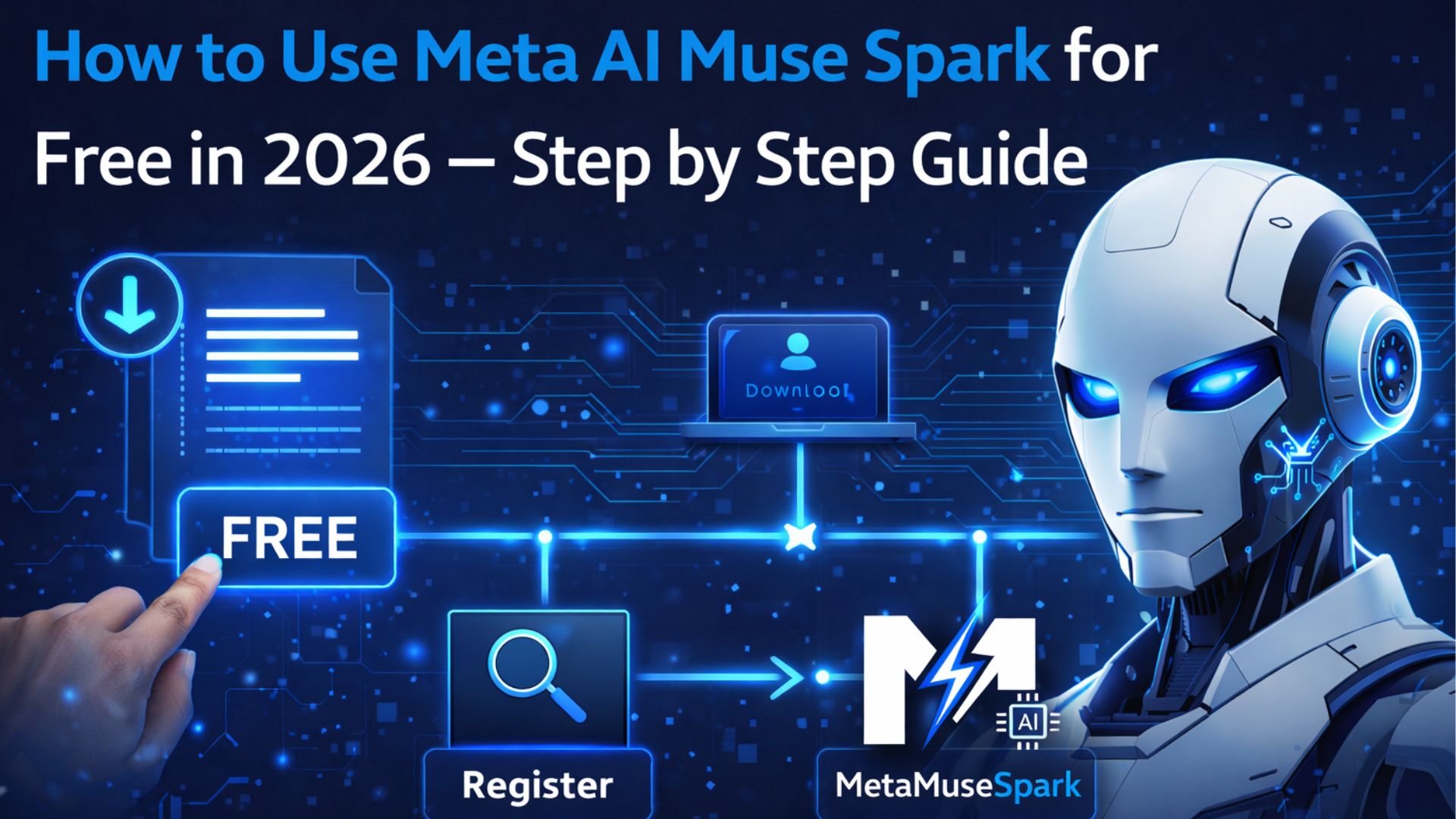
How to Use Meta AI Muse Spark
for Free — Step by Step Guide 2026
A complete beginner’s guide to accessing Meta AI Muse Spark for free — covering meta.ai, the iOS and Android app, WhatsApp, Instagram and Facebook. Plus tips for getting the best results.
📋 Table of Contents
- What You Need to Get Started
- Method 1: Use Muse Spark on meta.ai (Web)
- Method 2: Use the Meta AI Mobile App
- Method 3: Use via WhatsApp
- Method 4: Use via Instagram and Facebook
- How to Chat with Muse Spark
- How to Upload Images
- How to Use Contemplating Mode
- Best Prompts to Try First
- 10 Tips to Get Better Results
- Frequently Asked Questions
What You Need to Get Started
The good news is that using Meta Muse Spark is completely free — no credit card, no subscription, no waitlist. All you need is:
- ✅ A free Meta account (Facebook or Instagram) — takes 2 minutes to create
- ✅ A web browser (Chrome, Safari, Firefox, Edge) OR a smartphone
- ✅ An internet connection
⚠️ Privacy note: To use Muse Spark, you must log in with a Facebook or Instagram account. Meta’s privacy policy allows it to use data from your account. If privacy is a concern, consider creating a new, separate Meta account specifically for AI use.
Method 1: Use Muse Spark on meta.ai (Web)
The easiest and most full-featured way to use Muse Spark is directly in your browser at meta.ai.
Open meta.ai in your browser
Go to https://meta.ai in any modern web browser. You will see the Meta AI homepage with a chat interface.
Click “Get Started” or “Log in”
Click the blue “Get Started” or “Log in” button. You will be prompted to log in with your Facebook or Instagram account.
Log in with your Meta account
Enter your Facebook or Instagram username and password. If you don’t have a Meta account yet, click “Create account” and sign up for free — it takes under 2 minutes.
Start chatting with Muse Spark
Once logged in, you will see a chat box at the bottom of the screen. Type your question or request and press Enter or click the send button. Muse Spark will respond in seconds.
Select your reasoning mode
For simple questions, the default mode is fastest. For hard maths, science or research questions, look for the Contemplating mode toggle (being rolled out gradually) and enable it for deeper multi-agent reasoning.
Method 2: Use the Meta AI Mobile App
For on-the-go access, the Meta AI app is the best option. Since the Muse Spark launch on April 8, 2026, the app climbed to #5 on the US App Store — so you’re in good company.
Download the Meta AI app
Search for “Meta AI” on the Apple App Store (iOS) or Google Play Store (Android). Download and install the free app.
Open and log in
Open the app and tap “Log in with Facebook” or “Log in with Instagram”. Enter your account credentials.
Use text, voice or image input
The mobile app supports text, voice and image inputs. Tap the microphone icon to speak your question, or the camera/attachment icon to upload an image for Muse Spark to analyse.
Method 3: Use via WhatsApp
Meta is rolling out Muse Spark to WhatsApp in the coming weeks. Once available, you will be able to chat with Meta AI directly within WhatsApp — either in a dedicated Meta AI chat or by @mentioning it in group conversations.
💡 The WhatsApp integration is expected to be available in India very soon. To be notified, make sure you keep your WhatsApp app updated to the latest version.
Method 4: Use via Instagram and Facebook
Muse Spark is rolling out to Instagram DMs and the Facebook search bar and Messenger in the coming weeks. Look for the Meta AI icon in your Instagram DM inbox or the search bar in Facebook. Tap it to start a Muse Spark conversation.
How to Chat Effectively with Muse Spark
Muse Spark understands natural language — you don’t need to use special commands. Just write as you would to a knowledgeable friend. However, for best results:
- Be specific — “Explain how reinforcement learning works for a high school student” is better than “explain RL”
- Give context — tell it who you are and what you need (e.g. “I’m a chef, explain the nutrition in chicken curry”)
- Ask follow-up questions — Muse Spark remembers the conversation context
- Request a specific format — “give me a bullet-point summary” or “explain in simple terms”
how to use Meta AI Muse Spark: How to Upload Images for Visual Analysis
One of Muse Spark’s best features is its native multimodal vision. To use it:
Click the attachment/image icon
In the chat box, look for the paperclip or camera icon. Click it to upload an image from your device.
Upload your image and type your question
After uploading, type what you want Muse Spark to do with the image — analyse it, identify objects, read text, describe it, or answer questions about it.
Try these image use cases
“What is wrong with my appliance in this photo?”, “What are the nutritional details of this food?”, “Solve this maths problem from the image”, “Describe this chart to me”.
How to Use Contemplating Mode
Contemplating mode is Muse Spark’s most powerful feature — it runs multiple AI agents in parallel to tackle hard problems. It boosts Muse Spark’s score on Humanity’s Last Exam from 39.9% to 58%.
Contemplating mode is being gradually rolled out to users. If it is available in your account, you will see a reasoning toggle or “Contemplate” button near the chat input. Enable it before asking a hard question.
✅ Use Contemplating mode for: complex maths, research questions, scientific problems, writing long essays, detailed analysis — anything where quality matters more than speed.
Best Prompts to Try First
💬 Try These Prompts
10 Tips to Get Better Results from Muse Spark
- Be specific about your goal — tell it exactly what you want and why
- Provide context — mention your background, skill level, or situation
- Ask for multiple options — “give me 3 different approaches to this”
- Request explanations — “explain each step” or “explain why”
- Use images — Muse Spark excels at visual tasks, so upload photos when relevant
- Ask follow-up questions — build on previous answers in the same conversation
- Request a specific format — table, bullet points, step-by-step, essay
- Enable Contemplating mode for hard tasks — always use it for maths, science and research
- Test health queries — Muse Spark excels at nutrition and health questions
- Give feedback in the conversation — “that’s too long, summarise it in 3 points”